CASE BUILDER · STEP-BY-STEP GUIDE

Build a package you can use.

Turn your reviewed records into one organized case packet. Choose what belongs in it, check the preview, then print, save, or share your PDF.

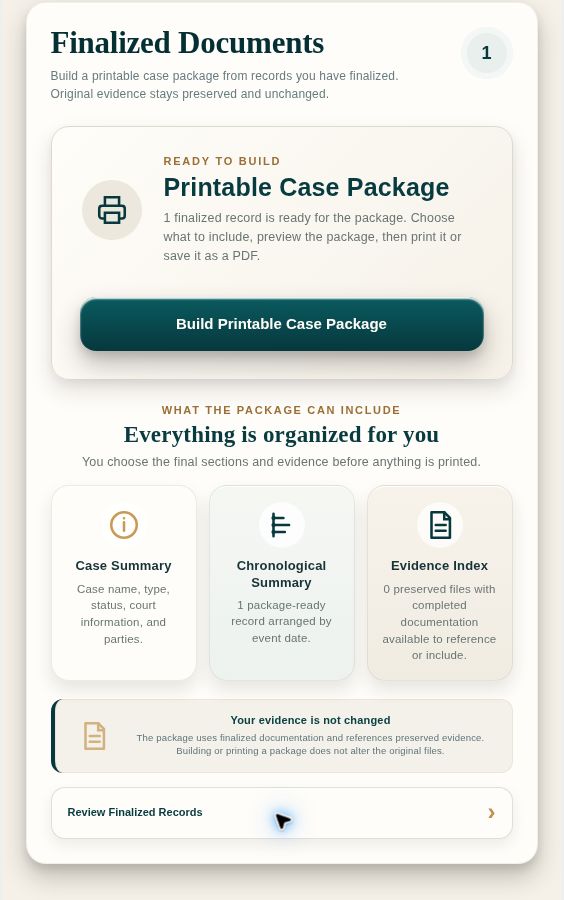
Actual Harsten app screen showing Finalized Documents and Build Printable Case Package
The starting screen in Harsten · fictional sample information.
Tap the image to view it full size.

STEP 01 / 06

Open Case Builder

Start with the case you want to prepare.

  1. Open Your Story, Your Record → Workspace → Cases, then choose your case.
  2. Select Finalized Printable Case Documents.
  3. Choose Build Printable Case Package, shown in the app screen beside this guide.

STEP 02 / 06

Set up your package

Give the package a name and choose how it should look.

  1. Check the selected Case and enter a Package Title.
  2. Use Prepared For if you want to identify an attorney, mediator, court, or personal records. Start and end dates are optional.
  3. Choose Court / Attorney Package or Binder Package. The style changes presentation, while your stored evidence stays the same.

STEP 03 / 06

Choose sections and evidence

Include what is useful for this particular package.

  1. Under Include Sections, choose the cover, contents, case summary, timeline, evidence index, or other available sections.
  2. Under Evidence to Include, check the records you want. Select Finalized helps select finalized records; Clear All clears the package selection.
  3. Review every selection. Some optional sections depend on your case type and available records. Empty optional sections are omitted.

STEP 04 / 06

Build and review the preview

See the finished package before you export it.

  1. Choose Confirm Package & Build Final Preview.
  2. Review the case details, dates, timeline, documentation, and selected exhibits. Included exhibits receive consecutive labels.
  3. Use Change Package to revise selections. If print wording needs adjusting, choose Edit Print Text, then Save Print Edits.

STEP 05 / 06

Save in Harsten or save a PDF

These are two different ways to keep your package.

  1. Choose Save Package to keep a saved package in Harsten. Reopen it from Workspace → Saved Print Packages.
  2. Choose Print / Save PDF to open your device’s print options. Select a printer or PDF destination when your device offers one.
  3. Check the print preview before saving or printing. Keep the PDF somewhere you can find it.

STEP 06 / 06

Email or hand over your package

Share the copy you have reviewed.

  1. Save the package as a PDF using your device’s print options.
  2. Open your email app, attach the saved PDF, and check the recipient and attachment before sending.
  3. For a paper copy, print the reviewed package. If you update records later, build or update the package and review the new copy.

Need help preparing your records first? Review & finalize guide →
Ready to use your own records? Open Harsten →